Connecting Zendesk
The webhook, classifying your two sides, field mapping, and the first sync.
Open this page in VendorApp →What is on this page
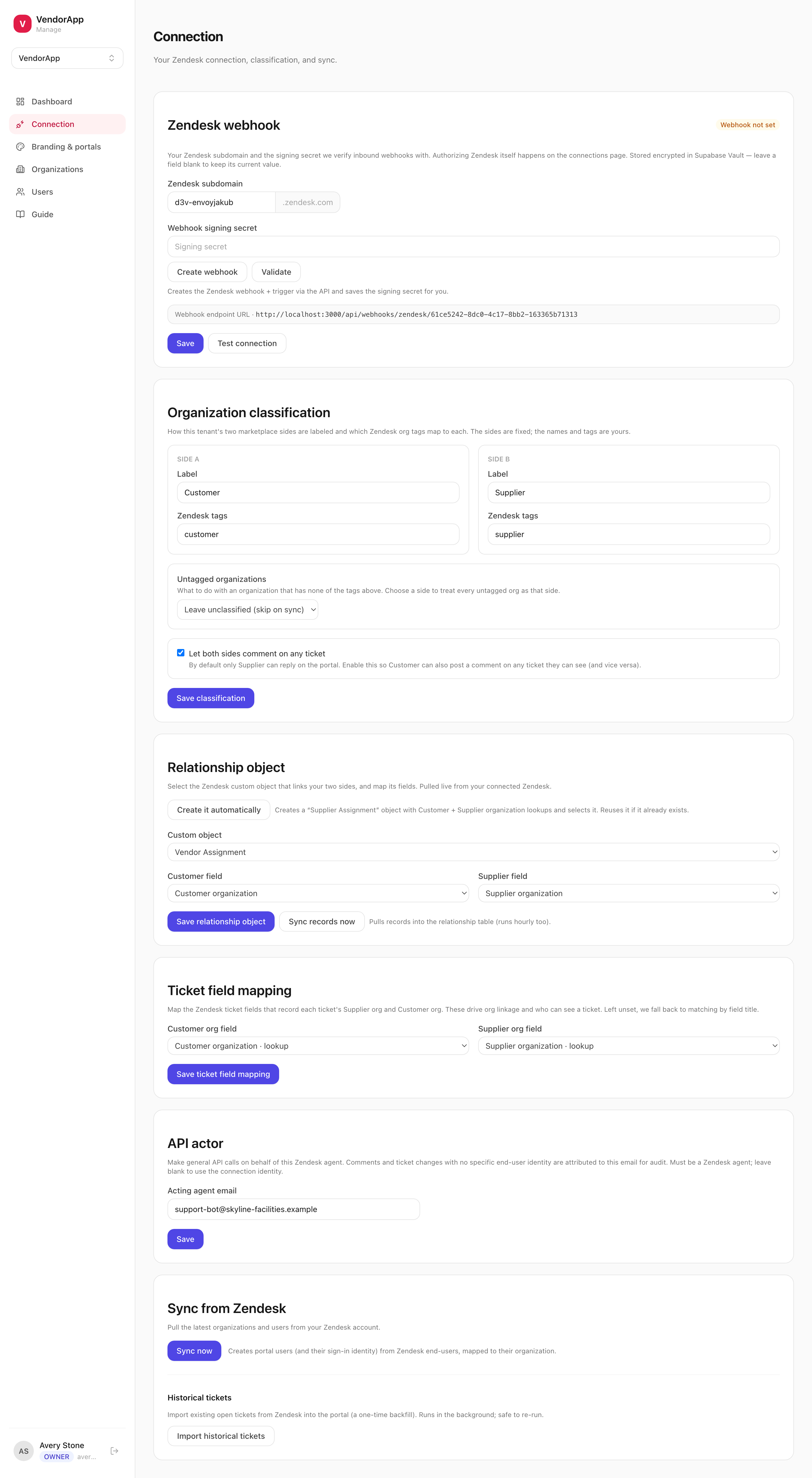
The Connection page is one long page of independent panels, each with its own Save button. Saving one panel does not save the others.
It configures how VendorApp uses your Zendesk. Authorizing that Zendesk in the first place happens on the workspace Connections page — see the chapter before this one. Panels that read live from Zendesk say Connect and save your Zendesk credentials first until one is in place, rather than guessing.
The webhook
The webhook is how Zendesk tells VendorApp that something changed. Without it, agent replies and status changes will not appear in the portal until the hourly reconcile catches up.
Set your Zendesk subdomain — the part before .zendesk.com — then press Create webhook. That creates both the webhook and the trigger in Zendesk through the API and stores the signing secret for you. If a webhook already exists it is reused; if it points at an old URL it is repaired. The Webhook endpoint URL shown beneath is the address Zendesk will post to, and the badge in the panel's top right tracks whether one is set.
Validate checks live against Zendesk and reports one of:
- Live
- Working. Nothing to do.
- Disabled in Zendesk
- The webhook exists but is switched off. Re-enable it in Zendesk, or press Create webhook again.
- Pointing at an old URL
- It posts somewhere else — usually a domain you have since moved off. Press Create webhook to repair the endpoint.
- Not found in Zendesk
- It was deleted. Press Create webhook.
- Missing signing secret
- We cannot verify incoming calls. Press Create webhook to regenerate and store one.
- Couldn't check
- We could not reach Zendesk — fix the connection first.
Test connection authenticates against Zendesk and reports back. Use it any time syncing looks wrong — it distinguishes a broken connection from a mapping problem.
Organization classification
This is where you name your two sides and tell VendorApp how to recognize them. For each side, set a Label (what it is called throughout the interface, and in your portals) and the Zendesk tags that identify organizations on that side. Tags are comma-separated.
On sync, each Zendesk organization is matched against these tags and filed on the matching side.
- Untagged organizations
- What to do with an organization carrying none of your tags. Leave it unclassified (it is skipped on sync), or treat every untagged org as one particular side.
- Let both sides comment on any ticket
- Off by default, meaning only Side B can reply on the portal. Turn it on so either side can comment on a ticket they can already see.
Relationship object
This records which suppliers work with which primary customers, using a Zendesk custom object. The dropdown is pulled live from your connected Zendesk, so this panel stays empty until the connection works.
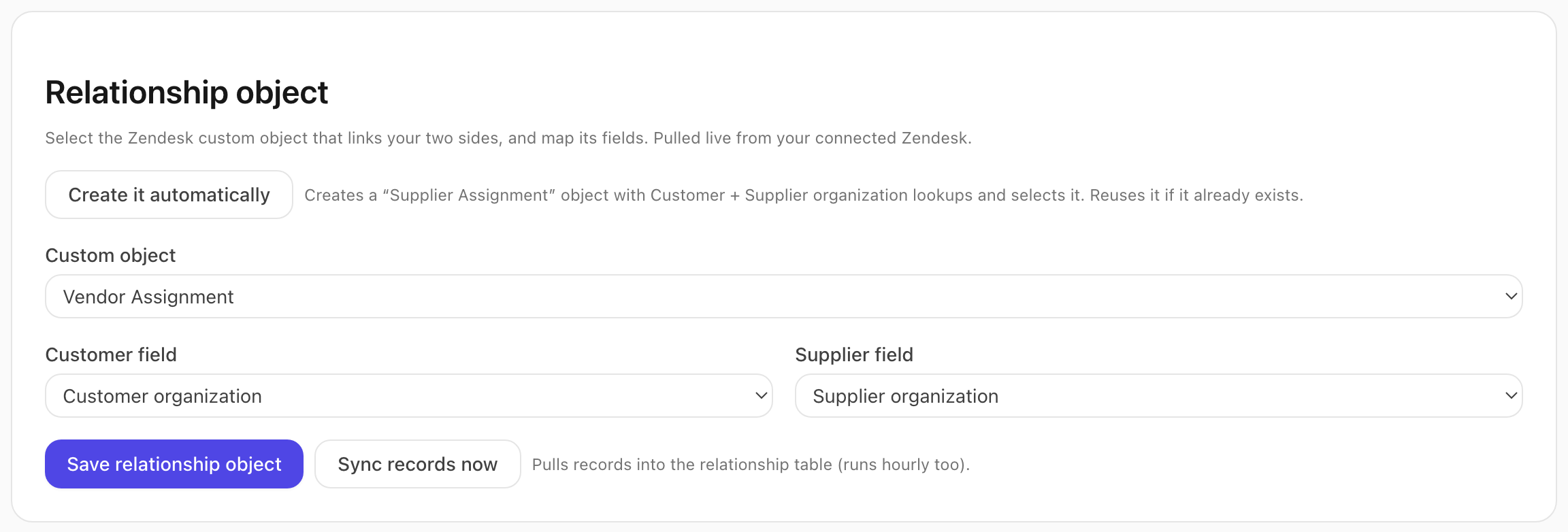
The quickest path is Create it automatically — it creates an assignment object with an organization lookup for each side and selects it. If one already exists, it is reused rather than duplicated. Otherwise pick your own object and map the two organization fields by hand, then Save.
Sync records now pulls the pairings in immediately; they also refresh hourly on their own.
Ticket field mapping
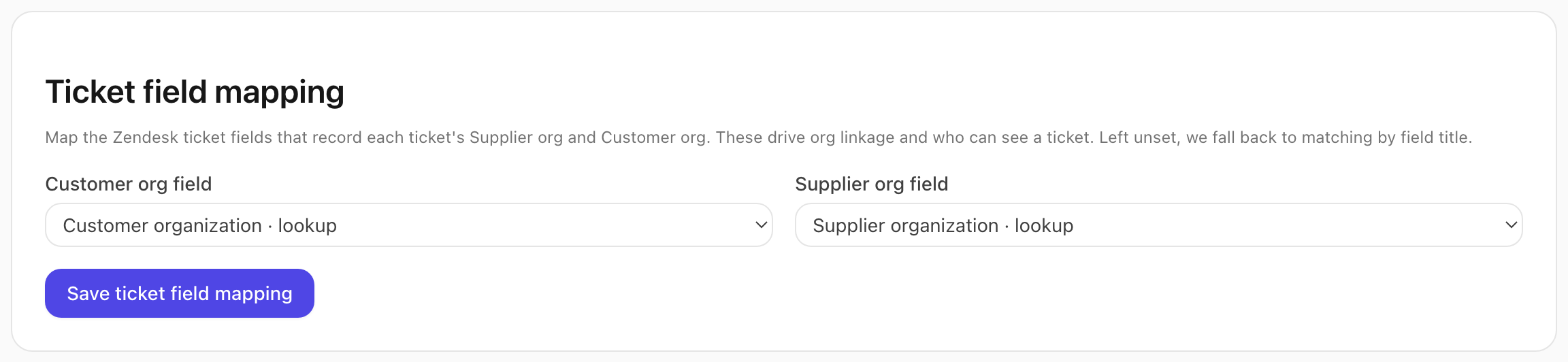
Tells VendorApp which ticket fields carry each side's organization. These two values decide which organizations a ticket belongs to, and therefore who is allowed to see it.
Only organization-lookup ticket fields are offered. Left as Match by title (default), we fall back to finding the field by its name — workable, but an explicit mapping is sturdier because it survives someone renaming the field in Zendesk.
API actor
Optional. When VendorApp writes to Zendesk with no specific end-user behind the action, it attributes the change to this agent, which keeps your Zendesk audit trail readable. It must be a real Zendesk agent's email. Leave it blank to use the connection's own identity.
Syncing and backfilling
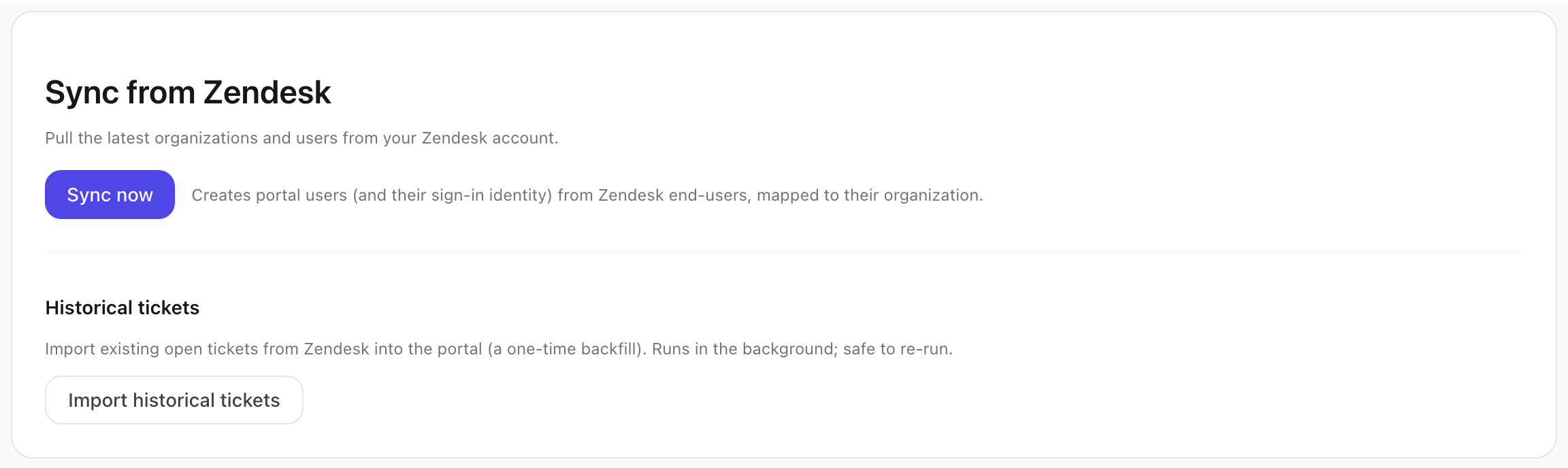
Sync now pulls organizations and users across from Zendesk, creating portal users — and their sign-in identities — mapped to their organizations. It reports how many were created, updated, and skipped. Run it after any classification change.
Import historical tickets is a separate, one-time backfill of your existing open tickets so the portal is not empty on day one. It runs in the background and is safe to re-run; tickets appear in the list as they are indexed.