Branding & portals
Creating a portal, branding it, submit forms, ticket columns, ticket actions, the Help Center hand-off, and custom domains.
Open this page in VendorApp →What a portal is
A portal is one branded surface your external users sign in to. Most accounts need only one. Run several when different audiences should see genuinely different branding, forms, or domains.
Each portal on this page expands into the same set of panels, each saved on its own: Branding, Submit-a-request forms, Ticket list view (with ticket actions), Help Center (theme, messaging widget and the sign-in hand-off), and Domains.
Creating one
Press + Add portal and give it a name and a slug. The slug becomes the subdomain and is globally unique — lowercase letters, numbers and hyphens only. It starts serving immediately on the platform's wildcard domain.
Branding
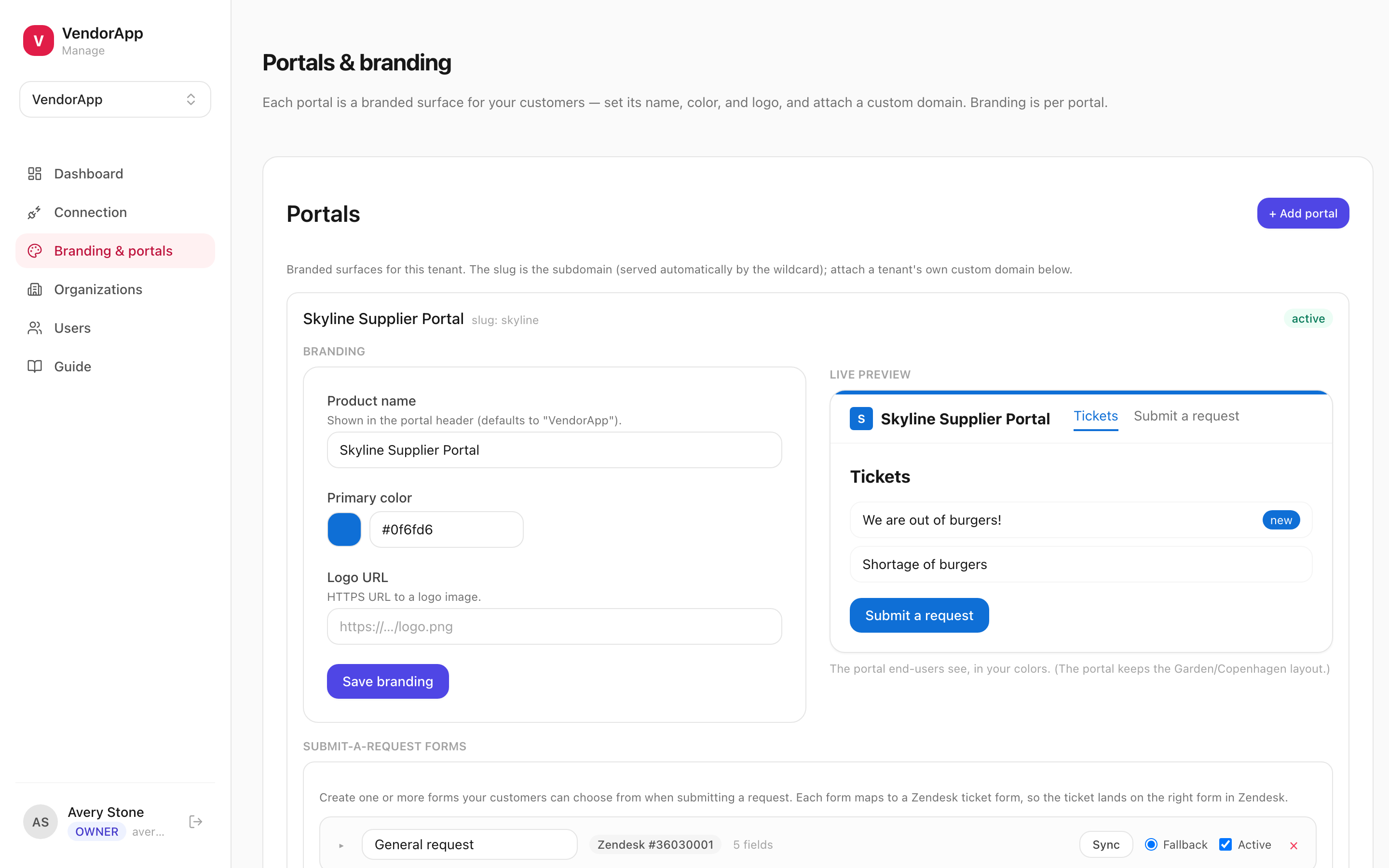
- Product name
- What the portal calls itself — in the header, the sign-in page, and the subject line of its auth emails. Defaults to "VendorApp".
- Primary color
- Drives buttons, links, and accents, plus the generated favicon. Set it as a hex value or with the swatch.
- Logo URL
- An HTTPS URL to a hosted image. It must be publicly reachable — a link behind a login renders as a broken image.
Branding reaches further than the portal pages: the sign-in screen and the emails your users receive carry it too, so people never see an unfamiliar name at the point they are asked to log in.
Submit-a-request forms
Controls what an external user fills in to raise a ticket. You can run more than one form per portal — for example a general request and a specific claim — and each is built from your real Zendesk ticket fields, so anything submitted lands on the ticket correctly.
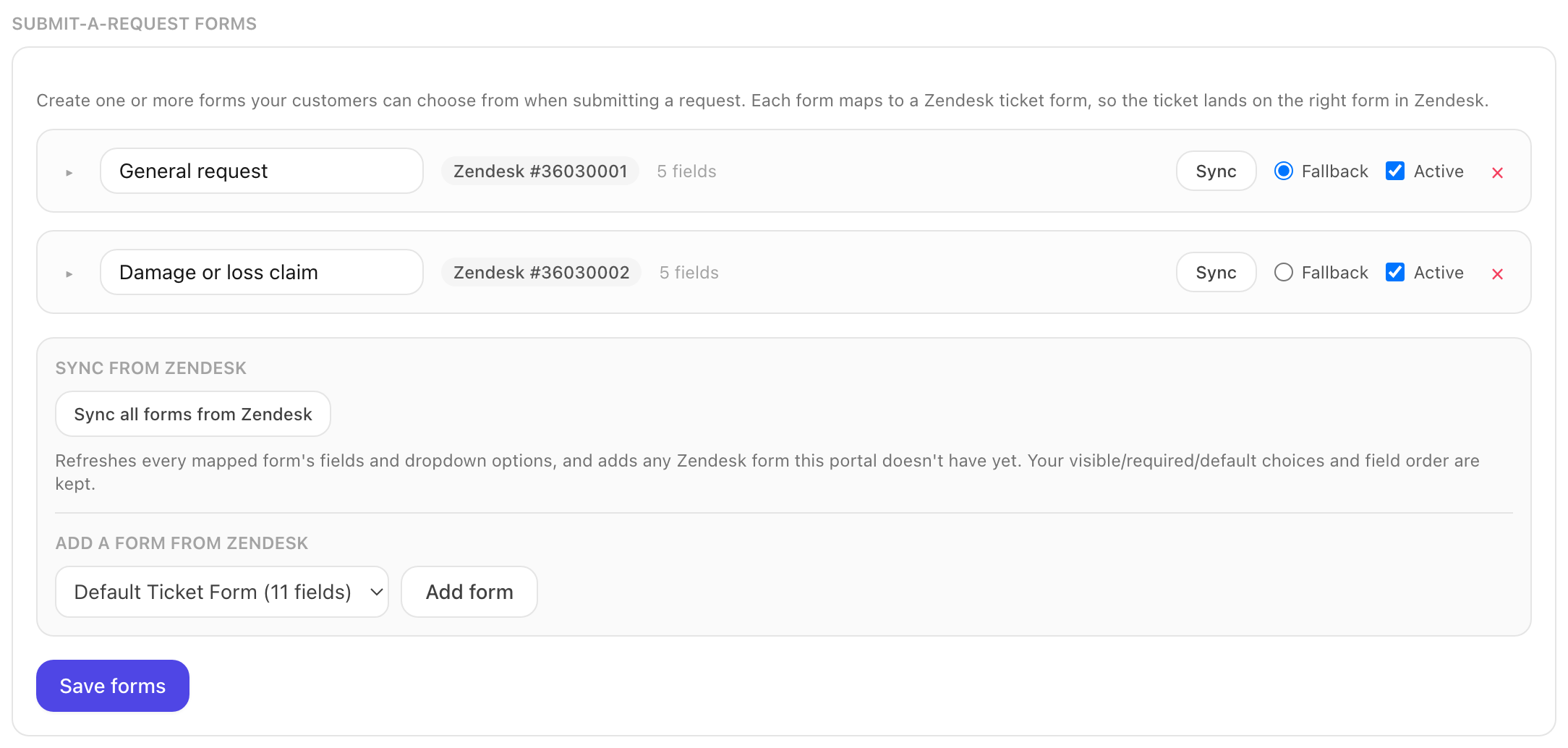
- Load Zendesk forms
- Lists the ticket forms in your Zendesk so you can add one. Copying a form brings its fields, its dropdown options and its conditions across as a snapshot.
- Sync (per form)
- Refreshes that one form's fields and dropdown options from Zendesk.
- Sync all forms from Zendesk
- Refreshes every mapped form and adds any Zendesk form this portal does not have yet. Your visible, required and default choices and your field order are kept.
- Active
- Whether the form is offered to submitters at all. Clear it to retire a form without deleting it.
Inside a form, add the fields you want, set which are required, and give the form a name. Fields your agents use internally do not have to appear here; expose only what an external user can sensibly answer.
With more than one active form, the submitter is asked to pick a topic first and the picker starts blank — no fields appear until they choose. A preselected topic gets filed against by people who never looked at it, and the ticket is misrouted before they have typed anything. A portal with a single form skips the picker and shows that form outright.
Fallback marks the form that stands in when a request reaches us without a topic — a browser tab left open while you removed the form it was filling in, or a portal where every form has been switched off. It preselects nothing and it never appears to someone using the picker normally. Point it at your most general form, the one that routes acceptably for a request you know nothing else about.
CC is an ordinary field on the form: show or hide it, rename it, reorder it, or make it required, exactly like the fields you add from Zendesk. When it is on, submitters can add addresses as they raise a ticket, and again on each reply. Turning it off on every form removes it from replies too.
Copying a form from Zendesk also brings its conditional fields: if your form only shows Request Type when Environment is Production, the portal does the same, and enforces any field Zendesk marks required once revealed.
Ticket list view
Chooses the columns of the ticket list your users land on, the filters offered, and the default sort. The whole panel is configured per side — pick the Side A or Side B tab first — and columns are then set per tab of the list: My requests, CC'd requests and Organization requests.
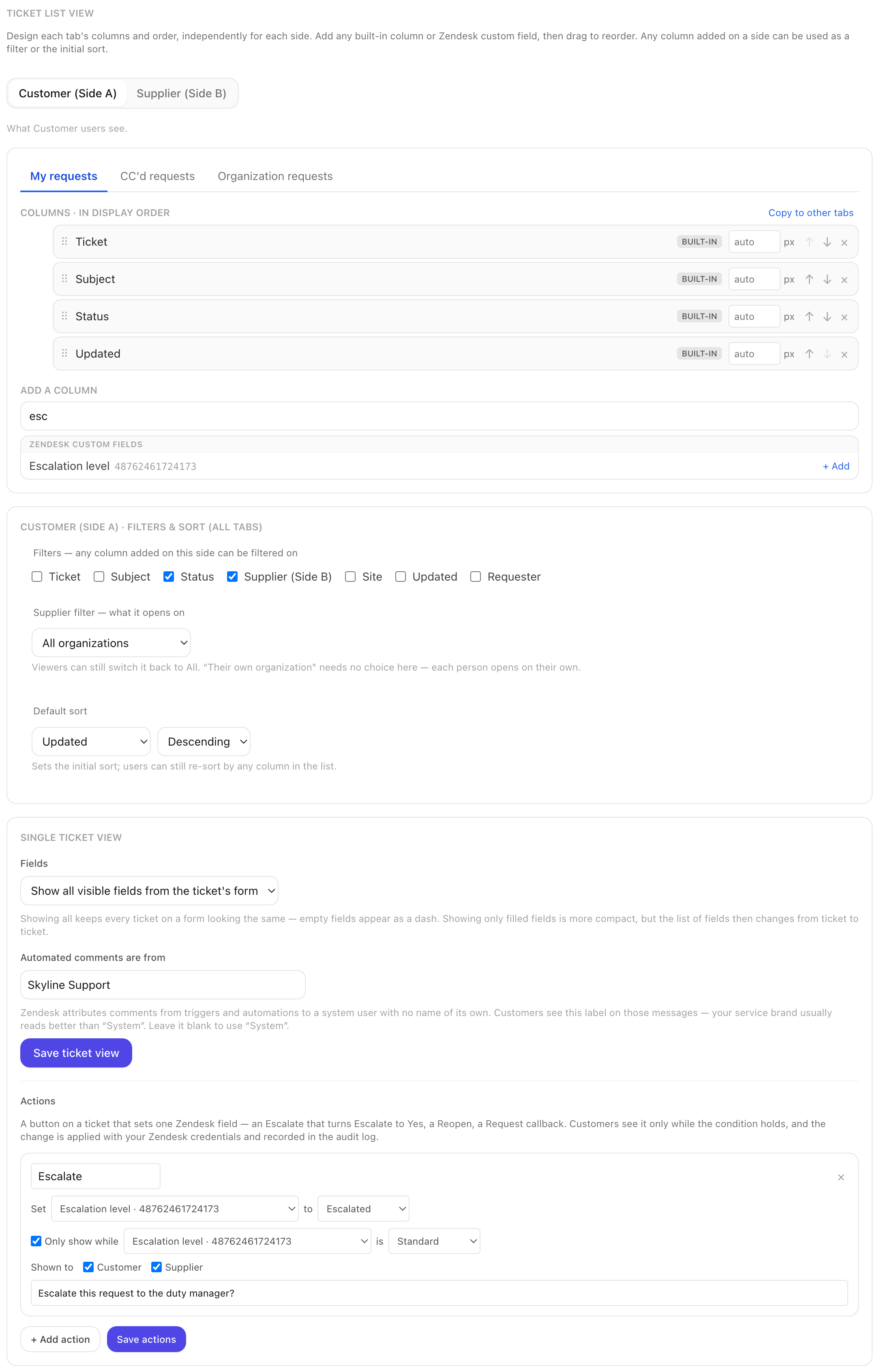
- Columns, in display order
- Built-in ticket attributes or any of your own Zendesk fields, searchable from one picker. Reorder with the arrows, remove with the cross.
- Column width
- Each column is sized to its content by default (shown as auto). Type a pixel width to pin that one column and leave the rest dynamic — the way to bring a sprawling table back inside the page without freezing every column.
- Filters
- Any column configured on that side can be offered as a filter. Filters apply across all three tabs.
- Default sort
- The column and direction the list opens on. Users can re-sort by any column afterwards.
The organization filter is the opposite side's column: a Customer-side user filters by Supplier, a Supplier-side user by Customer. It appears only when you have turned that column on as a filter, and you can choose what it opens on — all organizations, or one specific organization for everyone on the portal. Whichever you pick, the viewer can still widen it back to All.
Single ticket view decides what one ticket shows. Fields is either every visible field from its form, with empty ones as a dash, or only the fields that have a value. Showing everything keeps each ticket on a form looking the same; showing only filled fields is more compact, but then the list of fields changes from ticket to ticket, which reads as inconsistency rather than as an empty answer.
Automated comments are from names the author of the comments your Zendesk triggers and automations post. Zendesk attributes those to a system user with no name of its own, which shows as System unless you say otherwise. Customers reading the thread see this label, so set it to whatever your service signs off as.
Ticket actions
An action is a button on a ticket that sets one Zendesk field to one value — Escalate, Reopen, Request a callback. They are configured at the foot of the Ticket list view panel, and are the way to let a customer do something to a ticket beyond replying to it.
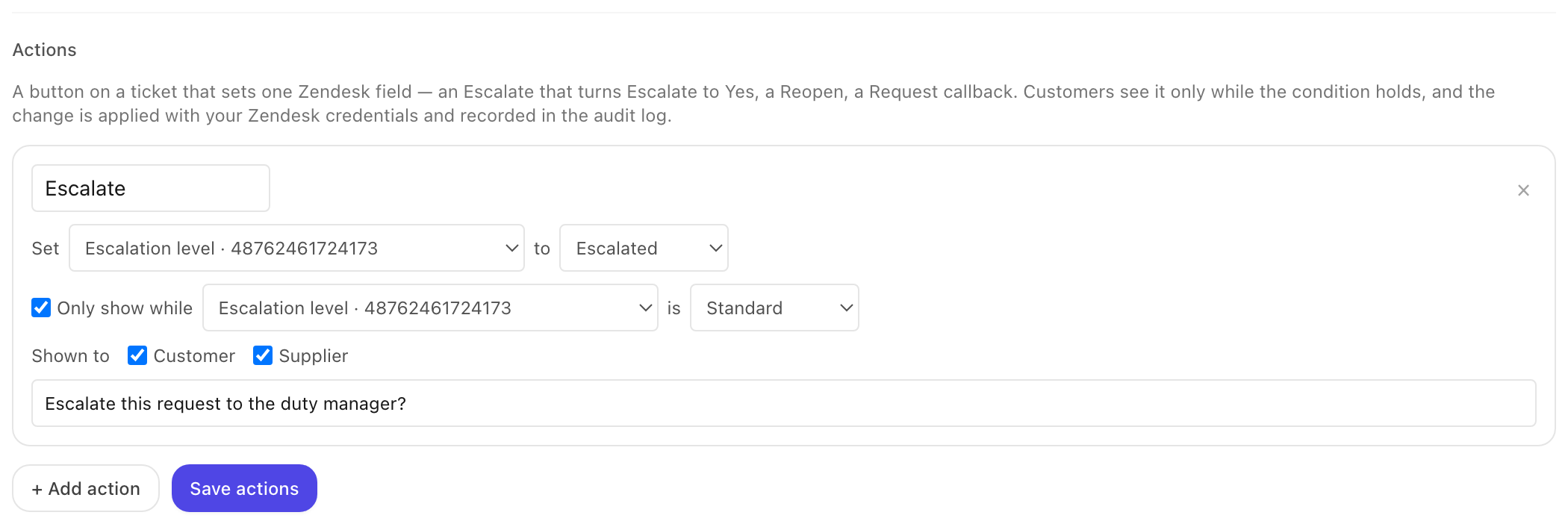
- Set … to …
- The field written and the value written to it. Both are chosen from your Zendesk, so an action cannot quietly do nothing because the stored value was spelled differently from the one you typed.
- Only show while … is …
- Hides the button once it has done its job. An Escalate button still sitting there after escalating is a support ticket in waiting.
- Shown to
- Which sides see it. With neither ticked the action is effectively disabled.
- Confirmation message
- Shown before the action applies. Leave it blank to apply on click.
What your customers see
Two Zendesk statuses are agent vocabulary, and the portal rewords them rather than repeating them at the person waiting:
- Pending → Awaiting your reply
- Pending means waiting on the requester, which reads backwards to the requester who is doing the waiting. This is Zendesk's own help center wording.
- On-hold → Open
- On-hold is an internal state meaning your agent is blocked on something. It is not a thing to tell a customer, so it shows as Open.
Users can also Follow an organization from the ticket list, which subscribes them to its tickets in Zendesk. The button appears only for an organization they actually belong to — Zendesk permits a subscription no other way, and someone who can see an organization's tickets is not necessarily a member of it.
Help Center theme
Optional, and the strongest form of branding available: a portal can wear a customer's actual Zendesk Guide theme, so its New Request, Request List and Request pages carry that theme's header, footer and styling.
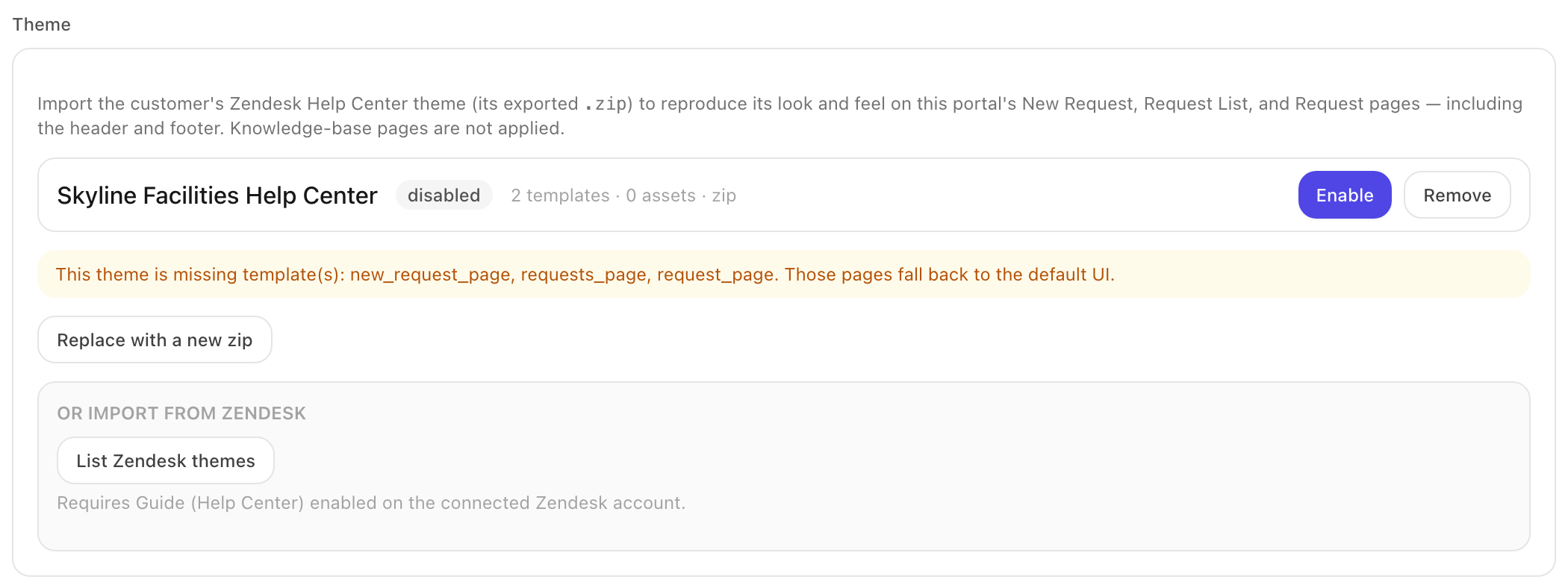
Get a theme in one of two ways: upload the exported .zip from the customer's Guide, or press List Zendesk themes to export one straight from the connected Zendesk, which needs Guide enabled on that account. Import runs in stages — exporting, downloading, installing — and the panel names the stage it is waiting on.
Messaging widget
Loads your Zendesk messaging widget — the chat or bot launcher — onto the portal. Paste the widget key from Admin Center → Channels → Messaging, or the whole <script> snippet and we will take the key out of it. Blank turns it off.

Sign-in from the Help Center
Off by default, and per portal. Turned on, someone already signed in to your Zendesk Help Center arrives at the portal already signed in here too — no second login. This is the hand-off for accounts that keep a public knowledge base in Guide: the Help Center's own Submit a request and My activities links point at the portal instead of Zendesk's own request pages.
The same handler powers the portal menu's Profile and Change password items, which open Zendesk's own dialogs. Those have no addresses of their own, so without the snippet in place the portal sends people to the Help Center home and the two items do nothing.
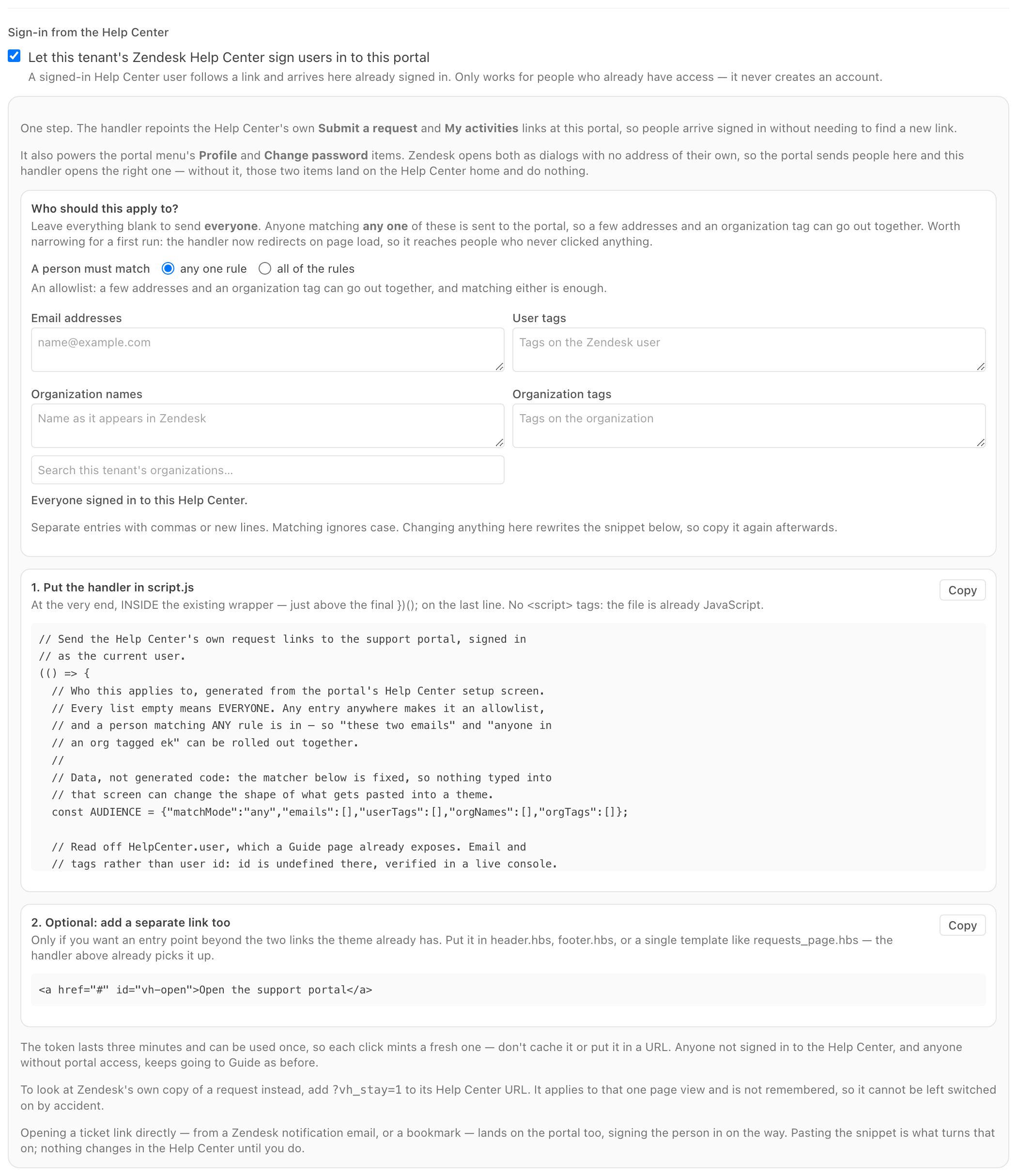
- Tick Let this portal's Zendesk Help Center sign users in to this portal.
- Set who it applies to, if not everyone.
- Copy the handler and paste it at the very end, inside the existing wrapper, of your Guide theme's
script.js. - Optionally add the standalone link snippet to a template, for an explicit way in.
Who it applies to narrows the roll-out. The rules are drawn from what a Guide page already knows about the signed-in person, so no extra request is made:
- Email addresses
- Exact addresses. The narrowest rule, and the right one for a first test.
- User tags
- Tags on the Zendesk user.
- Organization names
- As Zendesk spells them.
- Organization tags
- Tags on the person's organization — usually how a side is marked.
- Match any / all of the rules
- Any is an allowlist: match one rule and you are in. All is an intersection, and the only way to say "this organization AND tagged supplier". Within a single list it is always OR, and a blank list is not a rule and never blocks anyone.
?vh_stay=1 to its Help Center URL. It applies to that one page view and is not remembered, so it cannot be left switched on by accident.Custom domains
Every portal is already live on its own subdomain, shown at the top of this panel. To put it on a customer's own domain instead, add the domain, create the DNS records shown at that domain's registrar, then press Verify.
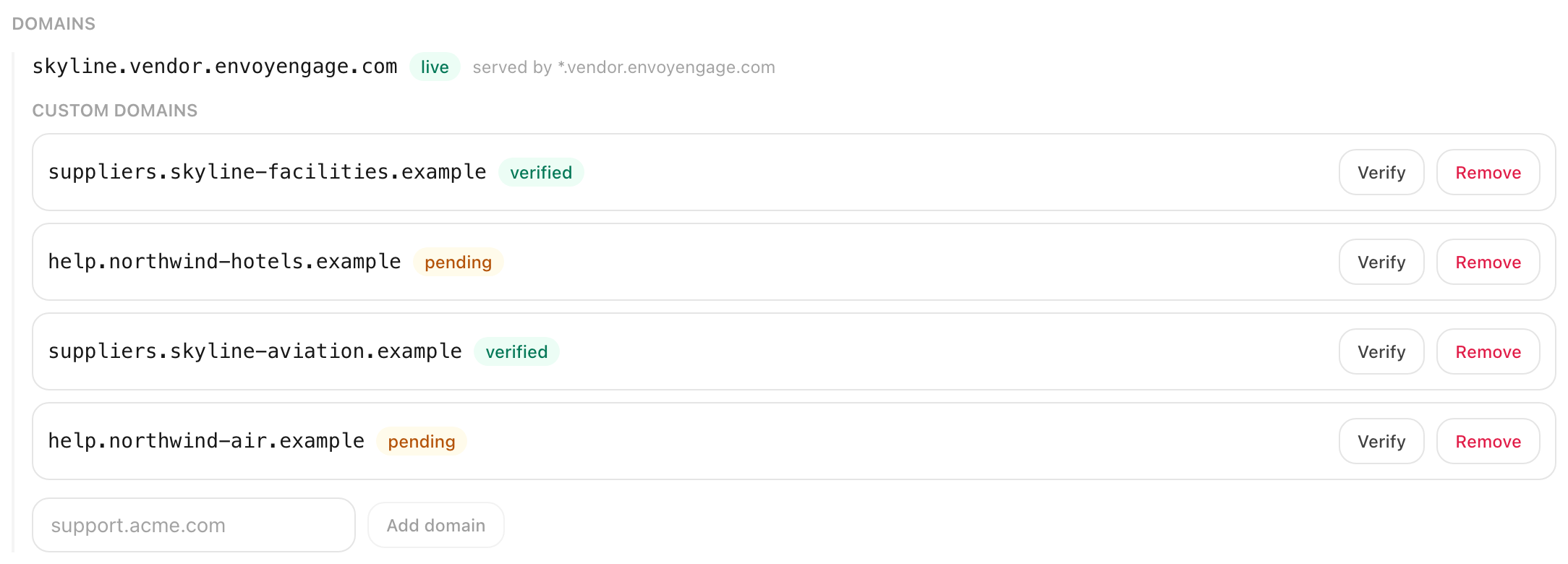
The badge tracks the state, and verification is not instant — DNS takes time to propagate, so press Verify again after a while rather than assuming it failed.