What VendorApp is
The two-sided model, who can see what, and the order to set things up in.
Open this page in VendorApp →The idea
VendorApp gives the companies you work with a branded place to raise and follow tickets — without giving anyone a Zendesk seat. Your agents keep working in Zendesk exactly as they do today. Everything an external user does in the portal lands in Zendesk as a normal ticket or comment, and everything your agents do in Zendesk flows back to the portal.
Zendesk stays the system of record. VendorApp is the access layer in front of it: it decides who may see which ticket, what the portal looks like, and which fields people fill in.
Two sides, one ticket
VendorApp models a marketplace with exactly two sides. Internally they are always called airline and vendor, but you choose what they are called in your account — they are shown throughout this guide as Customer and Supplier, which is what a new account starts with.
- Side A (
airline) - The party a piece of work is being done for. Named Customer by default.
- Side B (
vendor) - The party doing the work. Named Supplier by default, and by default only this side can reply on a portal ticket.
Every ticket carries an organization from each side. Those two values determine who can see it: a user sees a ticket only when it names their organization on their side. That is enforced in the database, not in the interface.
Which tickets a person sees
Every ticket stores two organizations, one per side. A person sees a ticket when it names their organization on their own side — a Customer-side user matches the ticket's Customer organization, a Supplier-side user matches its Supplier organization. There is one further rule, and it catches more tickets than people expect: you also see any ticket whose own requester organization is yours, whichever side you are on.
The two side values are worked out once, when the ticket is written, and the mapped ticket fields are only the first source consulted. This is why removing the Zendesk triggers that populate those fields does not leave every ticket unlinked — but it does remove the only explicit signal, leaving everything to the fallbacks below.
- The mapped ticket field for that side — the explicit answer, and the only one an agent sets deliberately.
- Whatever the ticket already had stored, so a later update never blanks a side that was known before.
- The ticket's own organization, when that organization is classified on the side that is still empty. A ticket raised by a Supplier's user tells you its Supplier; it says nothing about which Customer it concerns.
- The relationship object, when exactly one side is known and that side has exactly one counterpart. Two or more, and the side is left empty rather than guessed.
| What the ticket carries | Customer side ends up | Supplier side ends up | Who can see it |
|---|---|---|---|
| Both org fields set: Aurora Retail and Apex Cleaning | Aurora Retail | Apex Cleaning | Aurora's users and Apex's users |
| Only the Customer field (Aurora). Raised by an Apex user | Aurora Retail | Apex Cleaning — from the requester's own organization | Aurora's users and Apex's users |
| Only the Customer field (Aurora). Raised by an Aurora user, and Aurora works with exactly one supplier | Aurora Retail | That one supplier — from the relationship object | Aurora's users and that supplier's users |
| Only the Customer field (Aurora). Raised by an Aurora user, and Aurora works with six suppliers | Aurora Retail | Empty — ambiguous, so nothing is guessed | Aurora's users only |
| Neither field. Raised by an Apex user | Empty | Apex Cleaning — from the requester's own organization | Apex's users only |
| Neither field. Raised by an agent, or by someone with no organization | Empty | Empty | Nobody, on any portal |
| Fields name orgs you are not in, but the requester organization is yours | Someone else | Someone else | You — the requester-organization rule stands on its own |
| Your organization is on the ticket but has no side set in Organizations | — | — | Nobody from that organization |
Your workspace, and the apps in it
VendorApp is one app on the EnvoyEngage platform, and settings are split between the two levels accordingly. Workspace settings are shared by every app you run; app settings belong to VendorApp alone.
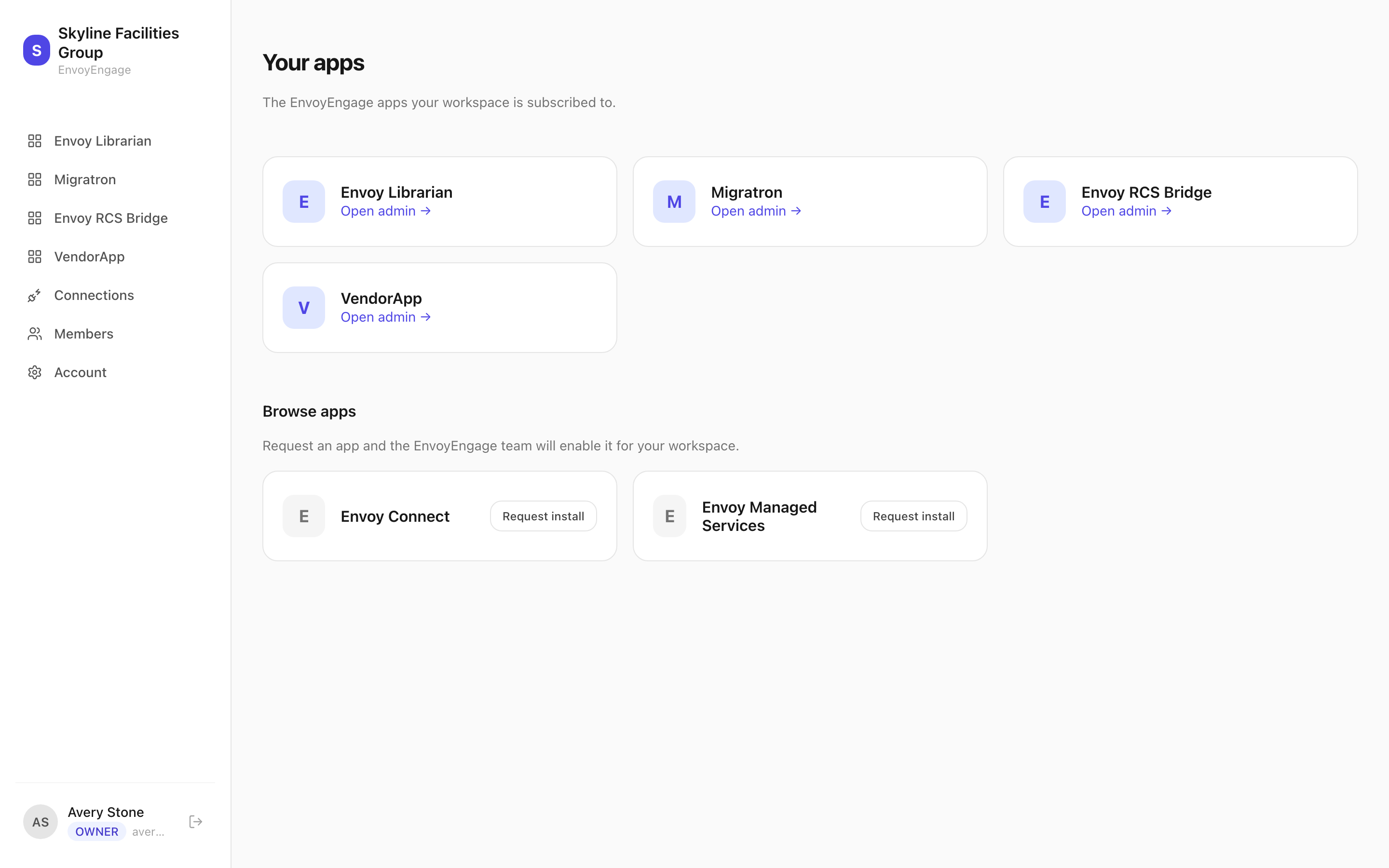
- Connections (workspace)
- The authenticated systems your apps use. You authorize a Zendesk once here and grant it to the apps that need it.
- Members (workspace)
- Who may configure this workspace, and at what role. This is administration; it is not the portal user list.
- Account (workspace)
- Your own profile, name and sign-in details.
- VendorApp (app)
- Dashboard, Connection, Branding & portals, Organizations and Users — everything in the rest of this guide.
Who can do what
- Workspace member
- You and your colleagues. Reaches
/manage, configures connections, portals and users. Held on the Members page, with a role of Owner, Admin or Viewer. Cannot see other tenants. - Portal user
- An external contact from one of your organizations. Sees only their own organization's tickets, on the portal — never this admin area. Held on the Users page, and usually created by a Zendesk sync rather than by hand.
- Your Zendesk agents
- Unchanged. They work in Zendesk; they do not need a VendorApp login at all — though an agent who is also a workspace member can open this admin from inside Zendesk.
The dashboard
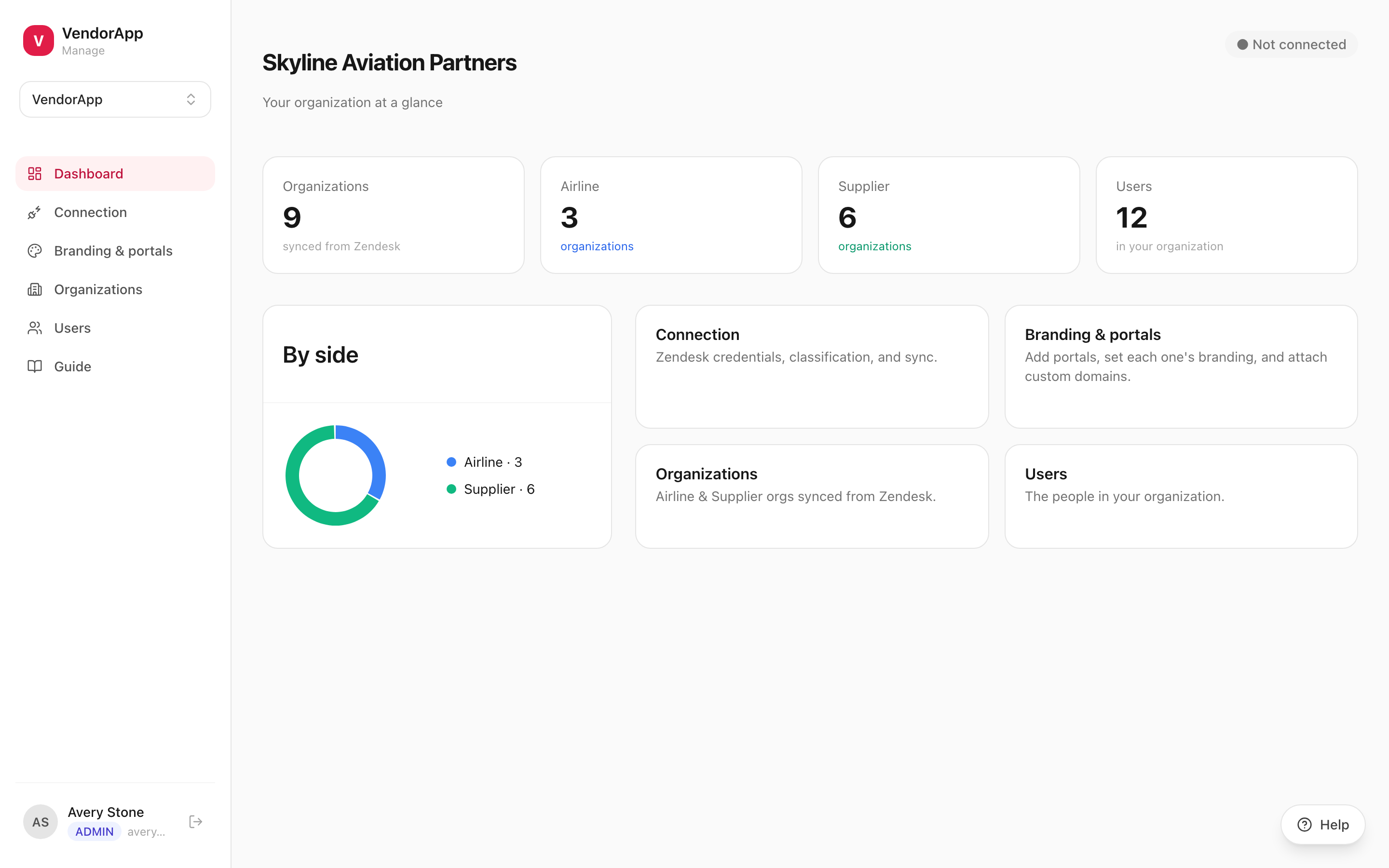
The dashboard is a health check: the connection pill in the top right, then four numbers about the people using your portal — signed in today, signed in this week, never signed in, and the size of your directory. If the pill reads Not connected or Reconnect needed, start on the workspace Connections page — nothing else will sync until it is green.
Each of the four is a link into the matching list of people, so a number you don't like is one click from the accounts behind it. Never signed in is the one to watch on a new workspace: a large number there usually means invites still to send, not a quiet portal.
Under the first number is a fortnight of daily sign-ins, so a quiet week is visible as a shape rather than a figure you have to remember. Days are counted as they happen, which means the bars start from the day this feature reached your workspace — it says collecting since until it has the full two weeks.
Help while you work
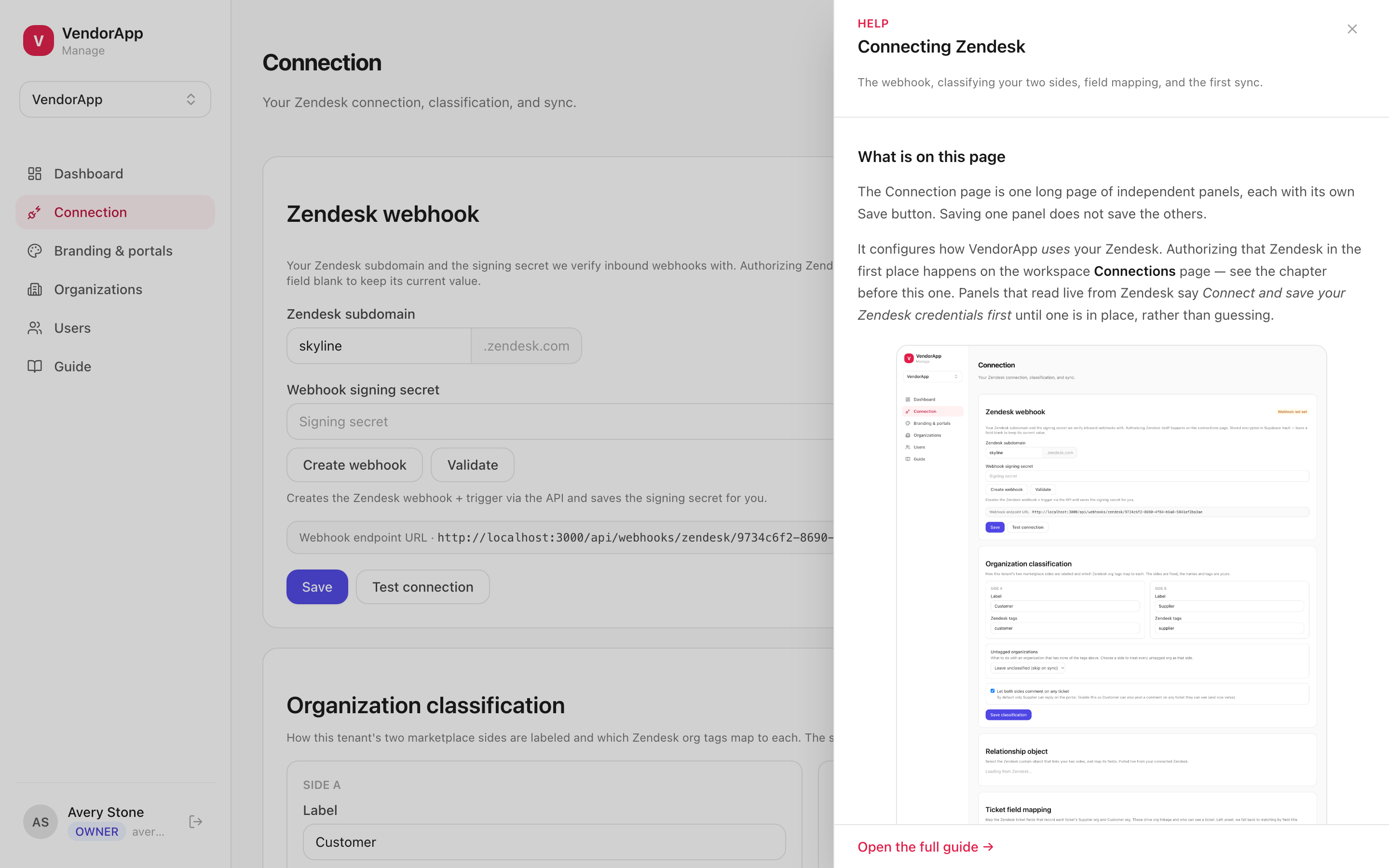
Every page in this admin carries a Help button in the bottom right. It opens the chapter of this guide that documents the page you are on, so you rarely need to go looking for the right section.
The order to set things up in
Each step depends on the one before it, so work top to bottom the first time:
- Authorize Zendesk on the workspace Connections page, and grant it to VendorApp.
- Create the webhook on VendorApp's Connection page so changes flow back.
- Classify your organizations — name the two sides and map the Zendesk tags that identify each.
- Map the relationship object and ticket fields so tickets link to the right organizations.
- Sync from Zendesk to pull organizations and users in.
- Create a portal, brand it, and build its submit form and ticket list.
- Invite users so people can sign in.