Users & access
Inviting people, impersonating, and removing portal access.
Open this page in VendorApp →The user list
Everyone who can sign in to a portal, with their organization and side. Search matches name, email or organization name, and you can filter by side or by a specific organization.
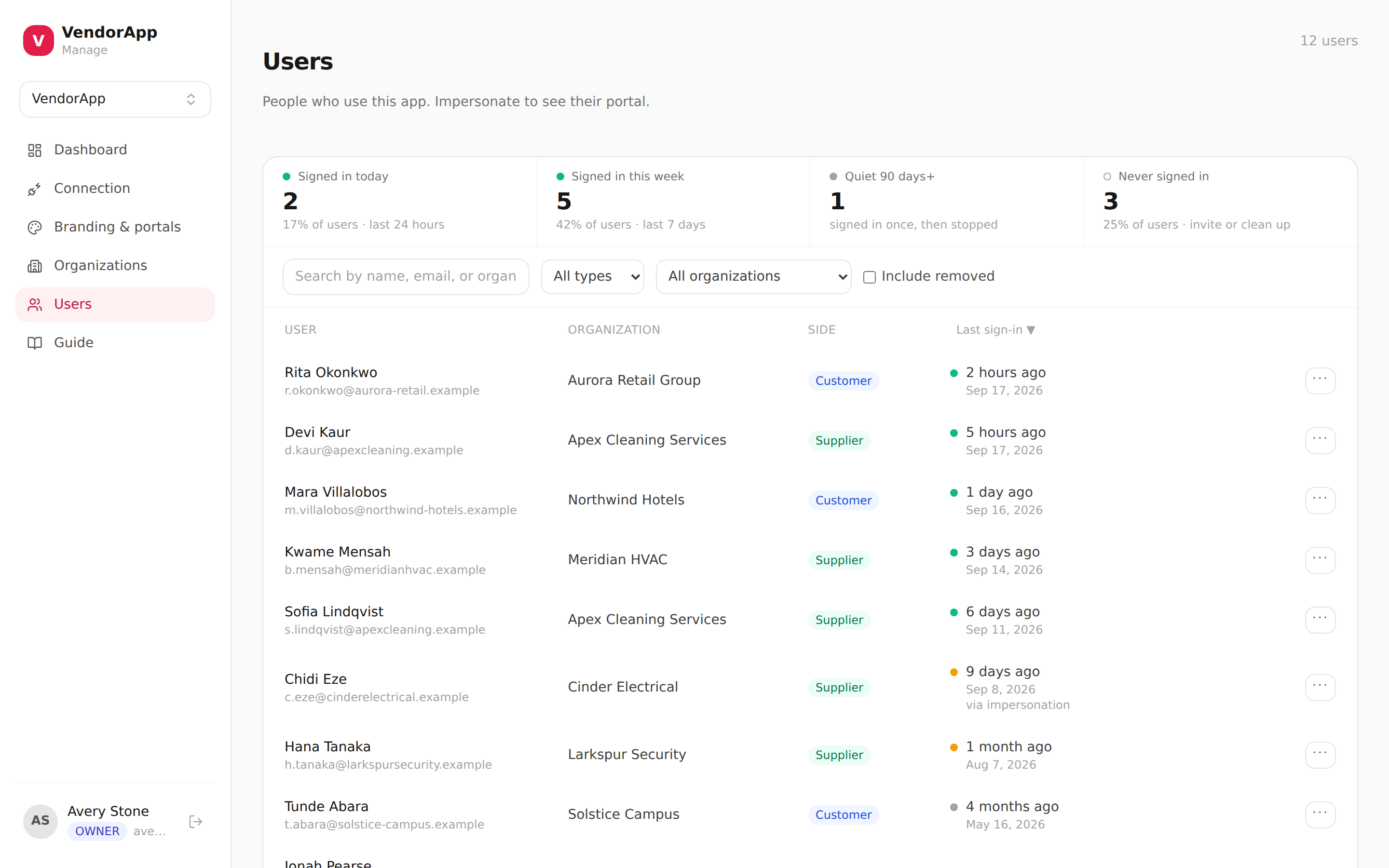
Most users are created by syncing from Zendesk, not added manually. If someone is missing, sync before you reach for an invite.
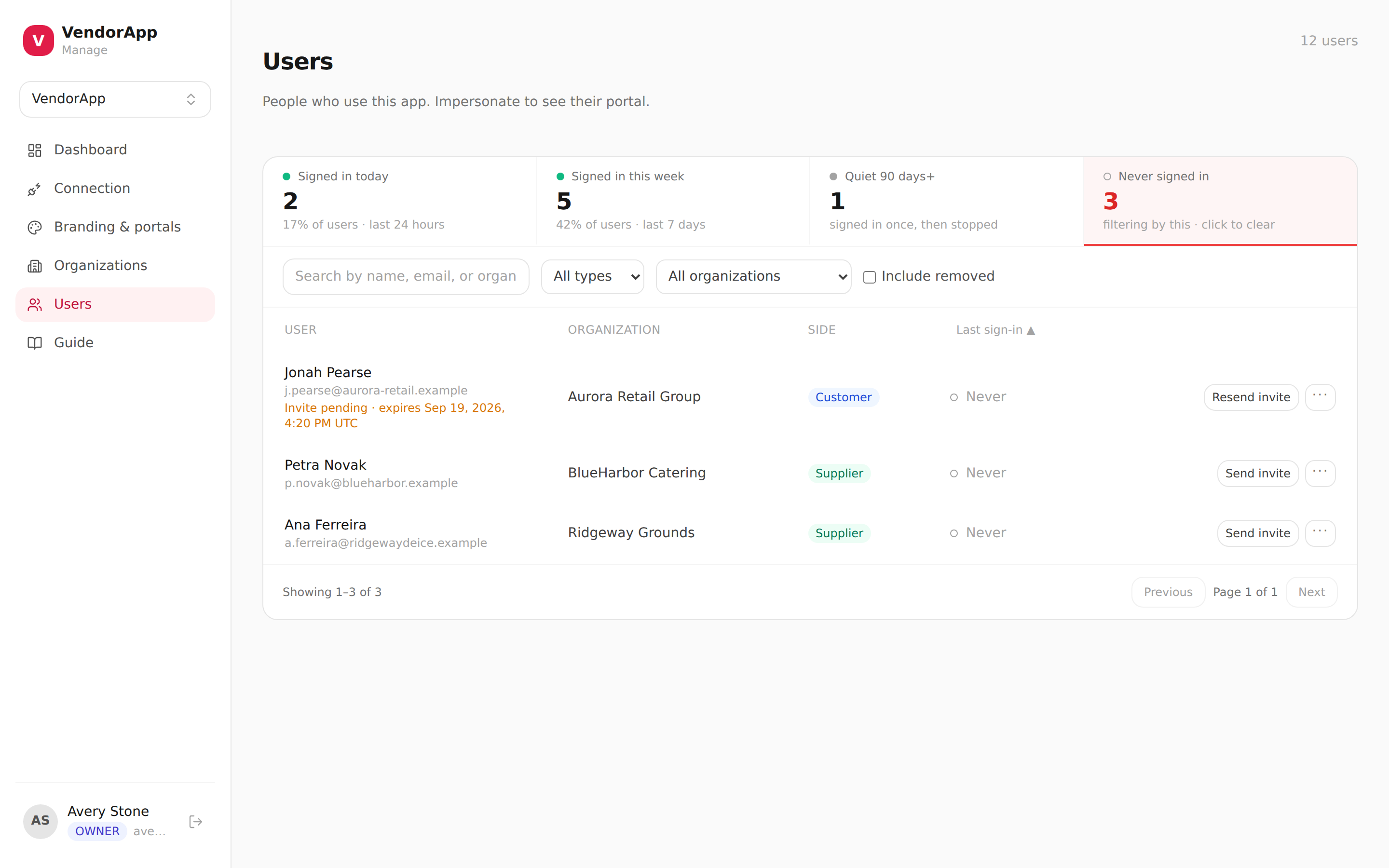
Last sign-in is the day each person last signed in, and reads Never for an account nobody has used yet — the usual state of a freshly synced user, and the thing to look at before assuming an invite went astray. Click the column heading to sort by it: once for the quietest accounts first, again to reverse, a third time to go back to the usual order. The sort covers everyone your filters match, not just the page you are looking at.
The four counts above the table — signed in today, this week, quiet 90 days+, never signed in — each filter the list to the people they count. Click one to work through that group, click it again to clear it. They count your whole workspace, not the page you are looking at, and they ignore the search box for the same reason.
Getting people signed in
Send invite emails the person a link to set their own password. It is good for 72 hours, and while one is outstanding the row shows Invite pending with its expiry. Sending again reissues it — which is the fix when someone lets one lapse, and it stops the previous link working.
Administration is not granted here
This page has no roles. Everyone on it is a portal user — someone who signs in to a portal to see their organization's tickets — and nothing you do here grants access to this admin area.
Who may administer the workspace lives on the Members page, one level up from the app, alongside Connections and Account. Add a colleague there, not here. See the next chapter.
Impersonation
Impersonate starts a session as that user so you can see precisely the portal they see — by far the fastest way to settle a "why can't I see my ticket?" report. A banner shows throughout, and the session ends on its own.
Removing access
Remove revokes this account's access. Their sign-in itself and any other workspace they belong to are untouched, and they can be restored later — tick Include removed to find them again, then Restore access. Removing also cancels any invite they were sent, so an outstanding link cannot let them back in.
Two removals are refused, and each would otherwise leave someone stuck: yourself, since you would lose the page you would need to undo it; and whoever owns the workspace, which has to be transferred on the Members page first.