Connections
Authorizing Zendesk once for the whole workspace, granting it to apps, and asking someone else to connect theirs.
One authorization, many apps
Connections is a workspace-level page, one level up from VendorApp, alongside Members and Account. It holds the systems your workspace has authenticated — today that means Zendesk, and the other platforms EnvoyEngage supports. You authorize a system once here, then say which apps may use it.
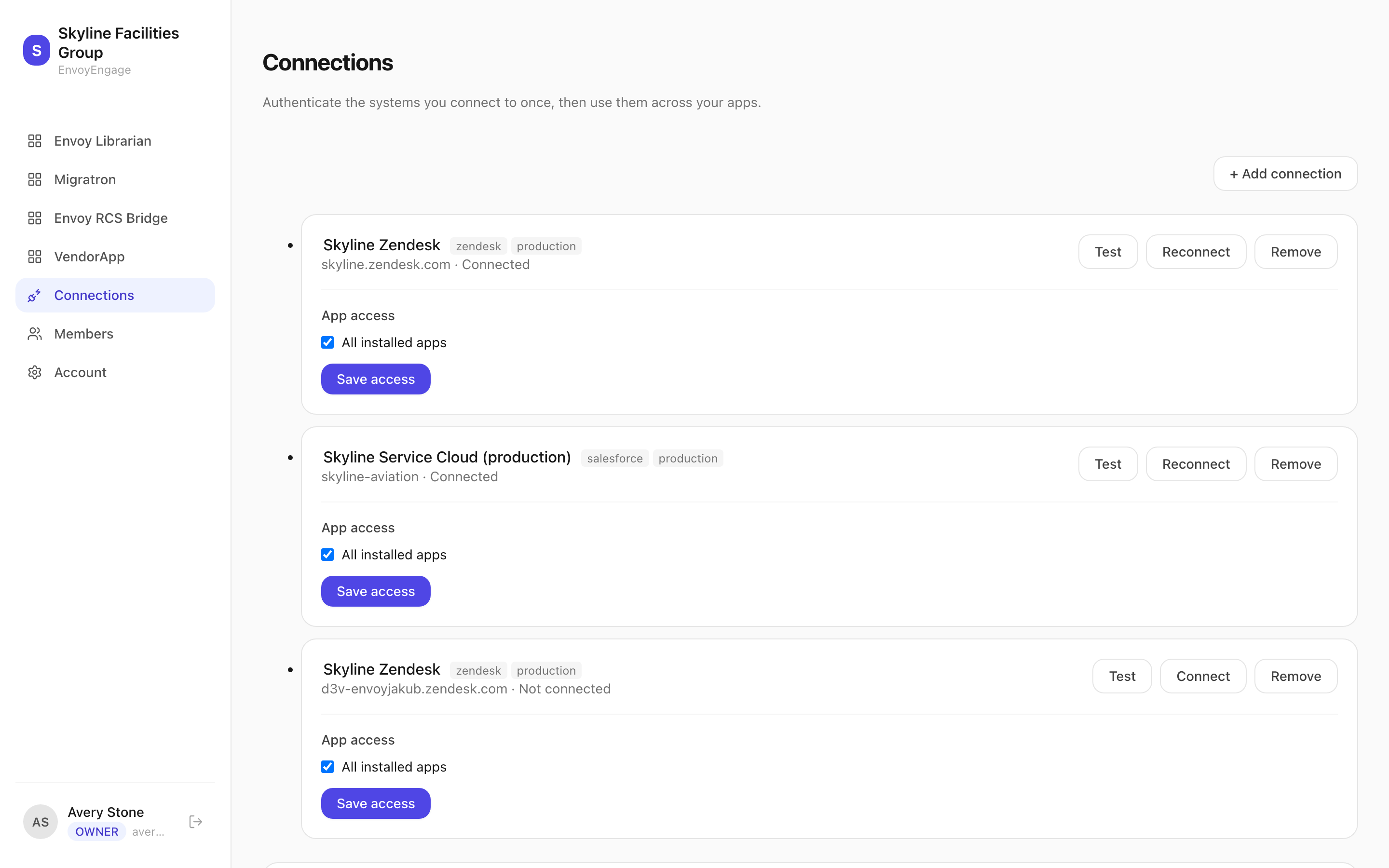
Adding one
- Press + Add connection and choose the platform. Zendesk asks for the subdomain — the part before
.zendesk.com. - You are sent to that platform to authorize, and returned here with the connection listed as Connected.
- Under App access, tick All installed apps or the specific apps that may use it, then Save access.
The label is yours to set and purely organizational — click it to rename. Nothing downstream reads it, so a rename cannot break anything; it exists so a workspace with several Zendesks can tell them apart. The badges beside it show the platform and, where one is set, the environment.
App access and scopes
Each app needs different permissions from Zendesk, and a connection is only asked to approve what the apps on it actually need. VendorApp needs read, write and impersonate — impersonate is what lets it post a satisfaction rating as the ticket's own requester, and it is the only reason a connection asks for it.
Grant an app that needs more than the connection was authorized for and you are told at the point of saving, naming the missing permission. Reconnect to approve the wider grant.
Test, and what it tells you
Test asks the platform rather than trusting our own status column, which records what was true when we last spoke to it. A pass names the account it authenticated as — the user, their email and their role, on that host — plus something it actually found there. That identity line is worth reading: it is the account every write will be attributed to.
A failure says what went wrong, and tells you when reconnecting is the fix.
- Connected
- Working. Nothing to do.
- Needs reconnect
- The authorization expired or was revoked at the platform. Syncing stops until you press Reconnect.
- Pending
- Created but never carried through the authorization. Press Connect.
- Disconnected
- No live authorization. Press Connect.
Asking someone else to connect theirs
Connection requests solves the case where the Zendesk you need is not yours — a customer's, say, whose IT team will authorize it but should not have an account here. Press + Request a connection, and you get a link to send.
- Label
- How the connection will be named in your pool once it arrives, e.g. Acme production Zendesk.
- Recipient email and note
- Optional. The note is shown to whoever opens the link, so use it to say why you are asking.
- Grant to apps on completion
- Which apps the finished connection is authorized into, decided up front so nobody has to come back to it.
- Expires
- How many days the link stays usable, from 1 to 30. Seven by default.
The recipient authorizes their own Zendesk through that link without ever signing in here. The connection then appears in your pool, already granted to the apps you chose.